Windows App
Screenshots
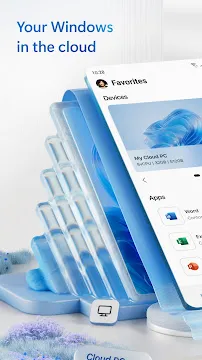
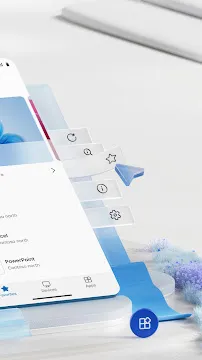
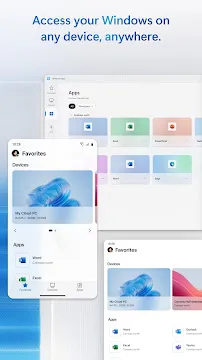
Windows App offers a seamless bridge between your mobile device and your desktop environment. This application transforms how you interact with your PC while on the go. It allows you to access your files, software, and settings without sitting at a desk. Many users now look for ways to stay productive from their handheld devices. This tool makes that possible by streaming your desktop experience directly to your screen.
Microsoft designed this interface to be intuitive and fast. You do not need to be a technical expert to set it up. Once you install the software, you can connect to your remote PC or virtual desktop in seconds. This flexibility changes the way professionals and students manage their daily tasks. You can now finish a report or edit a spreadsheet while commuting or sitting in a cafe.
What is the Windows App?
The Windows App acts as a secure gateway to your cloud PC or local computer. It provides a unified experience for users who need to reach Windows 365, Azure Virtual Desktop, or Remote Desktop Services. Instead of carrying a heavy laptop, you can use your phone or tablet to run full desktop applications. The software maintains the familiar layout of your PC, so you do not have to learn a new system.
Navigation is smooth because the developers optimized the touch controls. You can use gestures to click, scroll, and drag items just like you would with a mouse. If you prefer a physical setup, you can connect a Bluetooth keyboard and mouse. This setup turns your mobile device into a compact workstation. It helps you stay agile in a fast-paced work environment.
How to Set Up the Windows App
Setting up the Windows App is a straightforward process that takes only a few minutes. First, you need to download the application from your official store. Ensure your primary computer stays turned on and connected to the internet. You also need to enable remote connections in your PC settings. Once the app is open, sign in with your Microsoft credentials to see your available machines.
After logging in, you will see a list of your connected desktops and apps. Tap on the one you wish to use, and the connection initializes immediately. The app uses high-level encryption to keep your data safe during the stream. You can customize the resolution and display settings to fit your mobile screen perfectly. This ensures that text remains sharp and easy to read.
Key Features of the Windows App
The Windows App includes several features that improve the remote experience. One major benefit is the support for multiple monitors. If you have a tablet and an external screen, you can span your desktop across both. This increases your screen real estate and helps with multitasking. The app also supports high-quality audio and video redirection.
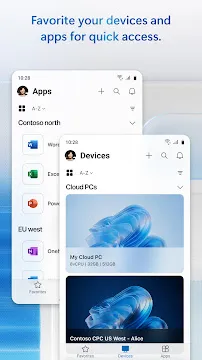
- Customizable Home Screen: Pin your most-used remote PCs and apps for faster access.
- Device Redirection: Use your mobile camera, microphone, and storage within the remote session.
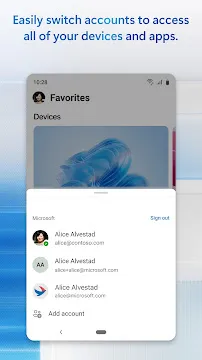
- Account Switching: Easily jump between different Microsoft accounts for work and personal use.
- Security: Multi-factor authentication adds an extra layer of protection to your remote sessions.
These features ensure that the mobile experience feels as robust as a native desktop setup. You won’t feel limited by the hardware in your hands.
Boosting Productivity with the Windows App
Using the Windows App allows you to maximize your time throughout the day. Many people find themselves away from their desks when an urgent task arises. Instead of waiting until you return home, you can handle the issue immediately. You can run heavy software like photo editors or coding environments that usually require a PC’s hardware.
The app handles the processing power on the remote side. This means your mobile device does not get hot or drain its battery too quickly. You are simply viewing a high-speed video stream of your computer’s brain. This method allows even budget devices to run high-end professional software. It levels the playing field for users who cannot always access expensive hardware.
Troubleshooting Common Issues
While the Windows App is reliable, you might encounter occasional connectivity problems. Most issues stem from a weak internet connection. Since the app streams data in real-time, you need a stable Wi-Fi or cellular signal. If the lag becomes noticeable, try lowering the display resolution in the app settings. This reduces the amount of data the app needs to process.
Another common hurdle is the “Remote Desktop” setting on the host PC. Always verify that your computer is not in sleep mode. If the PC sleeps, the connection will fail. You can change your power settings to “Always On” when you plan to work remotely. Additionally, check that your firewall allows remote desktop traffic. These small adjustments usually fix most connection errors.
Why You Need This Remote Solution
The modern world requires us to be mobile and responsive. The Windows App provides the freedom to work from anywhere without losing functionality. It bridges the gap between mobile portability and desktop power. You no longer need to email files to yourself or use USB drives. Everything you need stays in one place: your computer.
Security remains a top priority for this platform. Microsoft updates the app regularly to patch vulnerabilities and improve performance. This gives you peace of mind when accessing sensitive work documents. Transitioning from a desk to a mobile view is now a standard part of a modern workflow. Embracing this technology helps you stay ahead in your career or studies.
Conclusion
The Windows App is a vital tool for anyone who values flexibility and efficiency. It simplifies remote work by putting your entire PC inside your pocket. The setup is quick, the interface is clean, and the performance is impressive. By following the right steps, you can turn your mobile device into a desktop alternative. Stay connected to your digital life regardless of your physical location. Download the app today and experience a new level of freedom.